
Core Web Vitals for WordPress: How to Test and Improve Website Speed

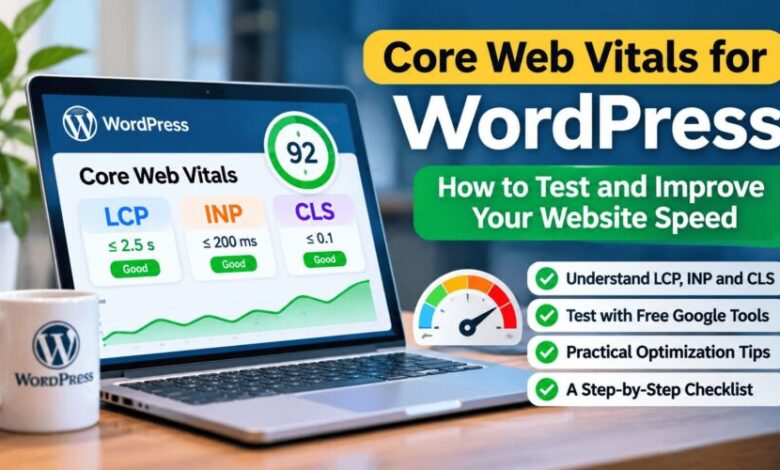
If your WordPress website feels slow, buttons respond late, or page elements jump while loading, Core Web Vitals can help you understand what visitors are experiencing. This guide explains the three metrics in plain English, shows you how to test a WordPress site for free, and walks through practical improvements you can make without buying a premium speed plugin.
Quick answer: Start by testing your homepage and one important article with Google PageSpeed Insights. Check the mobile report first, note the specific recommendations, and fix the largest problems one at a time. Avoid installing several performance plugins or changing many settings at once.
What are Core Web Vitals?
Core Web Vitals are Google’s key real-world metrics for loading performance, responsiveness, and visual stability. They help site owners assess whether pages feel fast and stable to people using them. They are one part of the wider page-experience picture; good scores do not guarantee a particular search ranking.
The three Core Web Vitals metrics
1. Largest Contentful Paint (LCP): loading
LCP measures how long it takes for the largest main-content element visible in the viewport—often a featured image, hero image, or large heading—to appear. A good LCP is 2.5 seconds or less. Large uncompressed images, slow server responses, and resources that load late can contribute to a poor result.
2. Interaction to Next Paint (INP): responsiveness
INP measures how responsive a page feels when visitors click, tap, or use the keyboard. A good INP is 200 milliseconds or less. Heavy JavaScript, excessive third-party scripts, or expensive event handlers can make interactions feel delayed.
3. Cumulative Layout Shift (CLS): visual stability
CLS measures unexpected movement of page content. A good CLS score is 0.1 or less. For example, a reader may try to tap a link just as an advertisement or image loads above it and pushes the link down. Reserving space for images, ads, embeds, and banners can reduce these shifts.
| Metric | What it measures | Good target |
|---|---|---|
| LCP | Main content appears | 2.5 seconds or less |
| INP | Response to user interactions | 200 milliseconds or less |
| CLS | Unexpected layout movement | 0.1 or less |
These are Google’s recommended good thresholds, assessed at the 75th percentile of visits. A lab test is useful for troubleshooting, but real-user field data is the better way to understand how a page performs for visitors over time.

How to test your WordPress website for free
Step 1: Use Google PageSpeed Insights
- Open Google PageSpeed Insights.
- Enter the full URL of a page on your website and run the test.
- Review both mobile and desktop results. Start with mobile because it may reveal issues that are less noticeable on a desktop connection.
- Look for the Core Web Vitals assessment and the individual LCP, INP, and CLS values when field data is available.
- Scroll to the diagnostics and opportunities. Use them to identify likely causes, not as a checklist to install every suggested tool.
PageSpeed Insights can show both real-user field data and simulated lab data. A page may not have enough field data to show all real-user metrics. That does not automatically mean the page is broken; use the lab diagnostics to investigate and test again later.
Step 2: Test more than the homepage
Test at least three types of page: the homepage, a typical article, and any page with extra features such as a form, gallery, or embedded video. Different templates and plugins can affect performance differently, so one good homepage score does not prove every article is fast.
Step 3: Check the Core Web Vitals report in Search Console
If Google Search Console is set up for your site, open the Core Web Vitals report. It groups eligible URLs by device and performance status using real-user data. The report is not a list of every page, and a URL may be absent when there is not enough data. Prioritise groups marked Poor, then investigate groups marked Need improvement.
Official references: Google’s Core Web Vitals guide and the Search Console Core Web Vitals report help page.
How to improve Core Web Vitals in WordPress
1. Optimise large images first
- Resize images to dimensions appropriate for where they appear instead of uploading huge originals for small content areas.
- Compress images and use a modern format such as WebP when your workflow supports it.
- Set image width and height so the browser can reserve the right amount of space.
- Avoid lazy-loading the main above-the-fold image if testing shows it is delaying LCP; lazy-load images that are well below the initial viewport instead.
Do not reduce every image to the same tiny size. Keep text and important visual details clear, and compare the page after each change.
2. Review plugins and third-party scripts
Review plugins that add pop-ups, sliders, social feeds, analytics, chat widgets, or advertising features. Disable a plugin only if you know what it does and have checked that your site does not depend on it. Remove tools you no longer use, and avoid running multiple plugins that perform the same caching or optimisation task.
Advertising and analytics scripts can affect loading or responsiveness, but removing them blindly may affect your site’s functionality or revenue measurement. Make changes carefully and retest the affected pages.
3. Reduce layout shifts
- Specify image dimensions or an aspect ratio so image space is reserved before the file loads.
- Reserve a stable container size for ads, embeds, and dynamically inserted content where possible.
- Avoid inserting a banner above content after the visitor has started reading.
- Check font loading and make sure late font changes do not cause major text reflow.
4. Improve responsiveness
If INP is poor, look for scripts that perform too much work when a visitor clicks a menu, opens a form, or uses a button. Remove unnecessary interactive widgets, reduce heavy third-party scripts where safe, and update outdated plugins or themes after taking a backup. If the issue is caused by a plugin, test changes on a staging site when available rather than experimenting on a busy live site.
5. Check caching and hosting performance
Caching can reduce repeated work when serving pages, but the right options depend on your hosting environment. First check whether your host or WordPress plan already provides page caching, a content delivery network, or image optimisation. Do not enable overlapping cache systems without understanding how they interact. If the server response remains slow after basic optimisation, hosting capacity and server configuration may need attention.
6. Keep the theme and plugins maintained
Updates can include performance, compatibility, and security improvements. Back up the site before significant updates, review release notes for major changes, and check the homepage, article pages, navigation, and forms afterward. Delete unused themes or plugins only when you are sure they are not required for recovery or site functionality.
A simple 30-minute optimisation plan
- Minutes 0–5: Run PageSpeed Insights on your homepage and one article. Record the mobile results.
- Minutes 5–10: Identify the biggest issue and whether it relates to loading, interaction, or layout shift.
- Minutes 10–20: Make one low-risk change, such as resizing a large image or removing an unused widget.
- Minutes 20–25: Clear the appropriate cache if your setup uses one, then retest the same URL.
- Minutes 25–30: Check the page visually on mobile and desktop. Keep the change only if the page still works correctly and the results or user experience improve.
Some improvements require more investigation than 30 minutes. Treat this as a repeatable first pass, not a promise that every issue can be fixed in one session.
Common mistakes to avoid
- Chasing only a score of 100: Focus on real user experience and the specific diagnostics, not a perfect number at any cost.
- Installing many speed plugins: Overlapping features can conflict or make troubleshooting harder.
- Testing only once: Results vary with network conditions, caching, page content, and test environment. Compare like with like.
- Assuming every URL has field data: Low-traffic or new pages may not have enough real-user samples.
- Expecting an instant ranking boost: Core Web Vitals are part of page experience, not a guarantee of ranking gains. Useful content, crawlability, relevance, and other factors still matter.
Frequently asked questions
Are Core Web Vitals a direct Google ranking factor?
Google uses Core Web Vitals as part of its page-experience signals, but passing the assessment does not guarantee higher rankings. Relevant, helpful content and many other signals still matter.
Can I test Core Web Vitals for free?
Yes. PageSpeed Insights is free, and Google Search Console provides a Core Web Vitals report for eligible sites with sufficient data. You do not need to purchase a premium speed-testing tool to get started.
Why does PageSpeed Insights show different mobile and desktop results?
The test environments differ, and mobile devices and connections may have fewer resources or slower networks. Review the diagnostics for each device type and prioritise the experience your visitors actually have.
How long does it take for changes to appear in Search Console?
Lab test results can be checked after a change, but Search Console’s field data is based on real visits collected over time. Allow time for new data to accumulate and use PageSpeed Insights to check immediate changes while you wait.
Final checklist
- Test the homepage and representative article pages.
- Review mobile and desktop results separately.
- Fix the largest confirmed issue first.
- Change one thing at a time and retest.
- Keep a record of the URL, date, metric, and change so you can compare progress.
Core Web Vitals optimisation is an ongoing process. Start with the evidence from your own pages, make careful changes, and prioritise a fast, stable, accessible experience for readers over chasing a score alone.
Further reading
- Google PageSpeed Insights
- Google Search Central: Core Web Vitals
- Google Search Console: Core Web Vitals report
- RochakSite: Best WordPress Plugins for Blogs
