How to Hide Drives in Windows 11 and 10 File Explorer (Without Blocking Apps)


What this Windows setting does
You can hide selected drive icons from File Explorer without removing the drive or uninstalling the programs stored on it. Windows includes a Group Policy setting named Hide these specified drives in My Computer. On current Windows templates, you will find it under File Explorer, although the policy name still uses the older phrase “My Computer”.
This is a visibility setting, not a security control. It hides the selected drive icons in File Explorer and standard Open dialogs, but users and applications may still reach the drive by entering its path or using other methods. Microsoft explains these limitations in its Group Policy guidance for hiding specified drives.
Before you begin: check your Windows edition
The steps below require the Local Group Policy Editor. Microsoft states that this editor is not available in Windows Home edition. If you are using Home, typing gpedit.msc will not open the supported built-in editor; do not rely on unofficial scripts that claim to add it.
- Open Settings.
- Select System, then About.
- Under Windows specifications, check the Edition field.
Microsoft’s Windows device information guide shows where to find the edition and version. Windows 10 reached end of support on 14 October 2025; these instructions may still apply to Windows 10 installations, but a supported Windows version is preferable for ongoing security updates.
How to hide selected drives using Group Policy
Use this method on a Windows edition that includes Local Group Policy Editor, and make the change for the user account or users targeted by the policy.
- Press Windows + R to open the Run dialog.
- Type
gpedit.mscand press Enter. - In Local Group Policy Editor, open User Configuration.
- Go to Administrative Templates → Windows Components → File Explorer.
- Open Hide these specified drives in My Computer.
- Select Enabled.
- Choose the drive combination you want to hide from the drop-down list.
- Select Apply, then OK.
The current policy path and its behaviour are documented by Microsoft Learn. Depending on the Windows template, the folder may be labelled File Explorer rather than the older Windows Explorer.
Which drive combinations can you select?
The standard policy drop-down provides seven built-in choices:


- Restrict A, B, C and D drives only
- Restrict A, B and C drives only
- Restrict A and B drives only
- Restrict all drives
- Restrict C drive only
- Restrict D drive only
- Do not restrict drives
These are predefined combinations; the standard list does not provide a separate option for every possible drive letter. Administrators who need a custom combination can create a separate custom Administrative Template (ADMX). Microsoft advises against editing the built-in WindowsExplorer.admx file directly because updates may overwrite changes.
What happens after you enable the policy?
The selected drive icons are removed from File Explorer and from standard file Open dialogs. This can make a shared computer’s navigation pane or This PC view simpler, or guide users toward particular storage locations.
Important: hiding a drive does not make its contents private. A user may still be able to open a known path such as D:\Projects, and an application can still access files if it has the necessary permissions. The policy also does not prevent users from viewing or changing drive information in Disk Management. Do not use it to protect confidential files or to enforce a security boundary.
How to show the drives again
- Open
gpedit.mscagain. - Return to User Configuration → Administrative Templates → Windows Components → File Explorer.
- Open Hide these specified drives in My Computer.
- Select Not Configured or Disabled.
- Select Apply and OK, then reopen File Explorer. If the change has not appeared after policy refresh, sign out and sign in again.
Microsoft confirms that disabling or not configuring this policy displays the drives again.
If your goal is to restrict access or protect data
Choose a control that matches the problem you are trying to solve:
- Control which Windows accounts can open files: use NTFS permissions on the relevant folders and review inherited permissions. See Microsoft’s Access Control overview.
- Protect data if a device or drive is lost or removed: use drive encryption. Microsoft’s BitLocker overview explains BitLocker and Device Encryption. Manual BitLocker Drive Encryption is edition-dependent; Device Encryption is available only on eligible devices.
For a practical Windows folder-permission and encryption walkthrough, see our guide to locking a folder in Windows with built-in options.
Older screenshots from the original guide
The following screenshots are retained from the original article. They show an earlier Windows interface, so the labels and appearance may differ from current Windows 10 and Windows 11 screens. Follow the current menu path above if your interface looks different.
Opening the Run dialog and Group Policy Editor


Navigating Administrative Templates and Windows Components
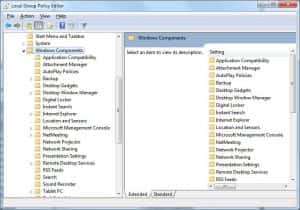

Locating File Explorer and the drive-hiding policy


Frequently asked questions
Can applications still use a hidden drive?
Yes. This policy hides the drive icon; it does not stop an application from accessing the drive through a known path when the account has permission to do so.
Does hiding a drive delete its files?
No. The policy changes how the drive is displayed in File Explorer and standard Open dialogs. It does not format the drive or remove its data.
Can I use this method on Windows Home?
No. The Local Group Policy Editor is not included in Windows Home. Check your edition under Settings → System → About before following the Group Policy steps.
Can I hide only the E: drive?
The standard policy menu offers seven predefined combinations and does not list every individual drive letter. A custom combination requires a separate, administrator-managed policy template; do not edit the built-in Windows template directly.
How do I restore the hidden drive icons?
Set the policy to Not Configured or Disabled, apply the change and reopen File Explorer. The drives should appear again after the policy refreshes.
Conclusion
The Group Policy setting Hide these specified drives in My Computer is useful when you want to simplify what users see in File Explorer while leaving normal application access available. It is not a way to lock a drive or protect confidential data. Use Windows account permissions for access control and encryption for data protection, and always check the Windows edition before opening Group Policy Editor.
Official references
- Microsoft Learn: Using Group Policy Objects to hide specified drives
- Microsoft Support: System configuration tools in Windows
- Microsoft Support: Find information about your Windows device
- Microsoft Learn: Access control overview
- Microsoft Support: BitLocker overview