
10 Essential Computer Skills Every User Should Know (2026 Guide)


Every computer user benefits from a few practical habits: keeping a reliable backup, working efficiently with shortcuts, protecting accounts, and knowing how to solve common problems. These skills are useful whether you use a Windows PC or a Mac.

This updated guide focuses on actions you can set up once and use regularly. Menu names can differ by operating-system version and device. The original illustrations from this article have been retained, so some screenshots may show older interfaces.
1. Set up a backup you can actually restore

A backup protects your documents, photos and other files if a drive fails, a device is lost, or files are deleted by mistake. Do not wait until something goes wrong to create one.
- Windows: Use Windows Backup for supported account, settings and folder-sync options. For file version history, you can also configure File History to save copies to an external drive or network location. Follow Microsoft’s File History backup and restore guide.
- Mac: Set up the built-in Time Machine with an external storage device or supported network destination.
- Cloud storage: Services such as OneDrive and iCloud make files available across devices, but synchronisation is not always a separate backup. Keep another copy of important files somewhere independent.
Check that backups are completing and occasionally restore a test file. A backup that has never been tested may not help when you need it.
2. Use keyboard shortcuts to work faster



Keyboard shortcuts reduce repetitive mouse movements and make common tasks quicker. Start with a few, then add more as they become familiar.
- Ctrl + C / Ctrl + V: Copy and paste on Windows.
- Ctrl + X / Ctrl + Z: Cut and undo.
- Ctrl + S: Save your current work.
- Ctrl + F: Find a word or phrase in a document or web page.
- Alt + Tab: Switch between open apps.
- Windows key + E: Open File Explorer.
- Windows key + Shift + S: Capture a selected area of the screen.
On a Mac, the Command key replaces Ctrl for many common shortcuts—for example, Command + C, Command + V, Command + S and Command + F. See our guide to essential Windows keyboard shortcuts for more examples.
3. Keep your computer and security software up to date
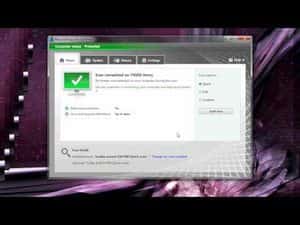
Malware can arrive through unsafe downloads, malicious attachments, fake update notices and compromised websites. Good security starts with a supported operating system and regular updates—not with installing every security utility you find.
- Turn on automatic operating-system, browser and app updates where practical.
- On Windows, review the Windows Security app and make sure its protection features are active. Download software from its publisher or a trusted app store.
- Use a reputable real-time security product appropriate for your operating system. Avoid running multiple real-time antivirus products unless their vendors specifically support that setup.
- Be cautious of pop-ups claiming that your computer is infected and asking you to call a number or install a remote-access tool.
- When a software publisher provides a checksum, learn how to compare it with the downloaded file. Our SHA-256 verification guide explains the process.
Windows 10 note: Microsoft’s standard support for Windows 10 ended on 14 October 2025. A Windows 10 PC may still run, but standard free security updates have ended; check Microsoft’s current guidance and any applicable Extended Security Updates options, and plan to move to a supported operating system. See Microsoft’s Windows support information.
For account safety, use unique passwords, a password manager and multifactor authentication (MFA). CISA’s Secure Our World guidance explains these basic protections and how to recognise phishing.
4. Know the first steps for fixing Wi-Fi problems

When the internet stops working, first find out whether the problem affects one device or every device on the network.
- Check whether other phones, computers or TVs can connect. If only one device is affected, troubleshoot that device first.
- Confirm Wi-Fi is switched on and that the computer is connected to the correct network.
- Restart the computer. If several devices are offline, restart the modem and router using the manufacturer’s or internet provider’s instructions.
- Check the router’s power and internet cables, status lights and ventilation. Do not press the factory-reset button unless you know how to restore the provider’s settings.
- Move closer to the router and test again. If possible, compare Wi-Fi with a wired Ethernet connection.
- If the connection remains down across devices, check for an internet-provider outage or contact the provider.
Changing router channels, DNS or advanced settings is not the first step for every connection problem. Make one change at a time and record the original setting so you can reverse it.
5. Manage laptop battery life with built-in settings

Battery runtime depends on the battery’s age, screen brightness, workload, wireless activity and the computer’s power settings. A few adjustments can reduce unnecessary power use.
- Lower screen brightness when full brightness is not needed.
- Use a balanced or power-efficiency mode when you are working away from a charger.
- Set the screen to turn off and the computer to sleep after a sensible period of inactivity.
- Close apps and browser tabs you are not using, especially those doing heavy background work.
- On Windows 11, review Settings > System > Power & battery and the Energy saver options. See Microsoft’s battery-saving tips.
- On a Mac, review Battery settings and the options available for your model and macOS version.
Lithium-ion batteries lose capacity as they age. Avoid excessive heat and follow the device manufacturer’s charging guidance rather than relying on blanket rules about fully draining or constantly topping up every battery.
6. Access your files or get remote help safely

If you need a document while away from home, a trusted cloud-storage service can keep selected files available on your other devices. Check which folders are synchronised and protect the account with MFA.
For help with a Windows problem, Microsoft Quick Assist can let someone you trust view your screen or request control after you approve the connection. Read Microsoft’s Quick Assist instructions before using it.
Never accept an unsolicited remote-support call or share a connection code with a stranger. If you need unattended access to your own computer, choose a reputable remote-access solution, use strong authentication, keep it updated and follow the provider’s security instructions. Do not expose remote-access services directly to the public internet just to make setup easier.
7. Maintain storage and performance without risky “cleaner” apps

Modern operating systems handle many routine maintenance tasks automatically. You usually do not need to run a collection of registry cleaners, driver-updater utilities or aggressive optimisation apps.
- Install operating-system and application updates from official settings or publisher websites.
- Uninstall programs you no longer use and review apps that launch automatically at sign-in.
- Keep enough free storage for updates and temporary files. Move large personal files to a suitable external drive or cloud-storage account when appropriate.
- Use the operating system’s built-in storage tools to review temporary files before deleting anything.
- On Windows, Defragment and Optimize Drives manages supported drive optimisation. Windows can defragment hard drives and send TRIM commands to SSDs; it normally schedules optimisation automatically. See Microsoft’s drive-optimisation guide.
If your computer remains slow, identify the bottleneck before buying hardware or installing a cleaner. Our guide to making a slow PC run faster covers safe checks for memory, storage, startup apps and malware.
8. Share files between nearby computers and devices

You do not always need a USB drive to move a document or photo to another device.
- Windows: Nearby sharing can send files and links between supported nearby Windows PCs using Bluetooth or Wi-Fi. Choose whether sharing is limited to your own devices or available to nearby people. Follow Microsoft’s Nearby sharing guide.
- Apple devices: AirDrop can send photos, documents and other items between nearby iPhone, iPad and Mac devices. Check the receiving setting before sending; Apple’s AirDrop guide explains the options.
- Cloud links: For people who are not nearby, share a link from a trusted cloud service. Give access only to the intended people and remove it when it is no longer needed.
Before sending, check the recipient and the file name. Do not make a folder or document publicly accessible unless that is genuinely what you intend.
9. Prepare your computer so you can find it if it goes missing

Device-location features are most useful when they are enabled before a computer is lost.
- Windows: On a personal Windows device, check Settings > Privacy & security > Find my device. The feature must be enabled in advance, and location services and the required account sign-in must be available. If the device goes missing, sign in at Microsoft devices and use the Find My Device option. Read Microsoft’s instructions.
- Mac: Set up Find My Mac in your Apple Account and iCloud settings before you need it. If the Mac is lost, use the Find My app or iCloud.com/find. Apple’s lost or stolen Mac guide explains how to locate, lock or erase a device.
Keep your device’s serial number and proof of purchase somewhere separate from the computer. If it is stolen, protect your accounts and report the theft; do not put yourself at risk trying to recover it.
10. Protect your personal information

Good privacy habits reduce the damage a lost device, compromised account or deceptive message can cause.
- Use a different, long password or passkey for each important account. A reputable password manager can help you create and store unique credentials.
- Turn on MFA wherever it is offered, especially for email, cloud storage, shopping and financial accounts.
- Pause before opening unexpected attachments or links. If a message claims to come from a bank or service provider, open the organisation’s official app or type its known website address yourself.
- Lock your screen when you step away. Use a strong sign-in method and enable device encryption where it is available and appropriate.
- Be careful when using shared computers and public networks. Do not save passwords on a device you do not control, and sign out when finished.
- Review app permissions and remove access for services you no longer use.
For folder-specific Windows protection options, see our guide to locking or protecting a folder in Windows. Hiding a folder is not the same as encrypting it or controlling access to it.
A simple monthly computer-care checklist
- Confirm that automatic backups are running and test a file restore.
- Install pending operating-system, browser and application updates.
- Check free storage and remove only files you recognise and no longer need.
- Review startup apps and account sign-in alerts.
- Confirm MFA and recovery details for important accounts.
- Check that Find My Device or Find My Mac is configured if you use it.
Frequently asked questions
How often should I back up my computer?
Use automatic backups as often as your work requires. If you create or change important files every day, a daily or continuous backup is more useful than an occasional manual copy. Test restoration periodically.
Is cloud synchronisation the same as a backup?
No. Synchronisation keeps files consistent across devices, but an unwanted deletion or change may also synchronise. Keep a separate backup with recoverable versions or copies.
Do I need to buy antivirus software?
Not every user needs a paid antivirus subscription. A supported operating system, built-in security features, timely updates and careful download habits provide an important baseline. Choose additional security software based on your needs and keep only a compatible real-time protection setup.
Should I manually defragment an SSD?
Do not use old third-party defragmentation advice for an SSD. Windows’ built-in Optimize Drives feature handles drive optimisation, including TRIM for SSDs, and normally runs on a schedule.
Can I locate a laptop after it has been lost?
Sometimes. Windows Find My Device and Apple’s Find My Mac need to be configured before the device goes missing. Location may not be available if the device is offline, powered off or unable to report its location.
Final thoughts
You do not need to be a technical expert to use a computer safely and confidently. Start with a tested backup, learn a handful of shortcuts, keep your software supported and updated, and protect your accounts with strong authentication. These small habits make everyday computer use more reliable and help you respond calmly when something goes wrong.


